
Introduction

Website speed is one of the most important factors for success in 2025. A slow WordPress website can reduce traffic, increase bounce rate, and even affect Google AdSense approval. Visitors expect a website to load within 2–3 seconds. If your site is slow, users will leave and never return.
The good news is that you do not need advanced technical skills to speed up your WordPress website. By following the right steps, anyone can make their site faster.
In this guide, you will learn step-by-step methods to speed up your WordPress website, even if you are a beginner.
Why Website Speed Is Important
Before learning how to speed up WordPress, let us understand why speed matters.
1. Better User Experience
Fast websites keep visitors happy. Users like smooth and quick browsing.
2. Higher Google Rankings
Google uses page speed as a ranking factor. Faster websites rank higher.
3. Better AdSense Performance
Speed improves ad viewability and earnings.
4. Lower Bounce Rate
Slow websites increase bounce rate. Speed reduces it.
How to Check Your WordPress Website Speed
Before optimization, you should check your current speed.
Free Speed Test Tools:
Google PageSpeed Insights
GTmetrix
Pingdom Tools
These tools show:
Page load time
Performance score
Speed improvement suggestions
👉🏻Choose a Fast and Reliable Hosting
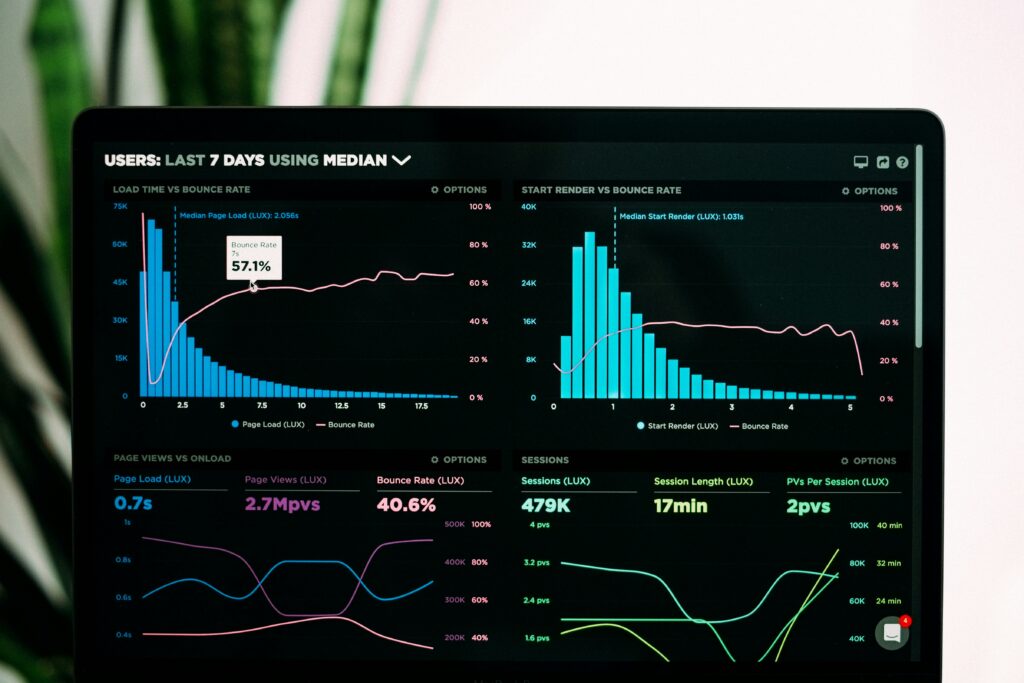
Hosting plays the biggest role in website speed.
Bad Hosting Problems:
Slow server response
Frequent downtime
Poor performance during traffic
Good Hosting Benefits:
Faster loading
Better uptime
Improved SEO
Recommended Hosting Types:
Shared Hosting (for beginners)
Cloud Hosting (better speed)
Managed WordPress Hosting
Tip: Cheap hosting usually means slow speed.
👉🏻Use a Lightweight WordPress Theme
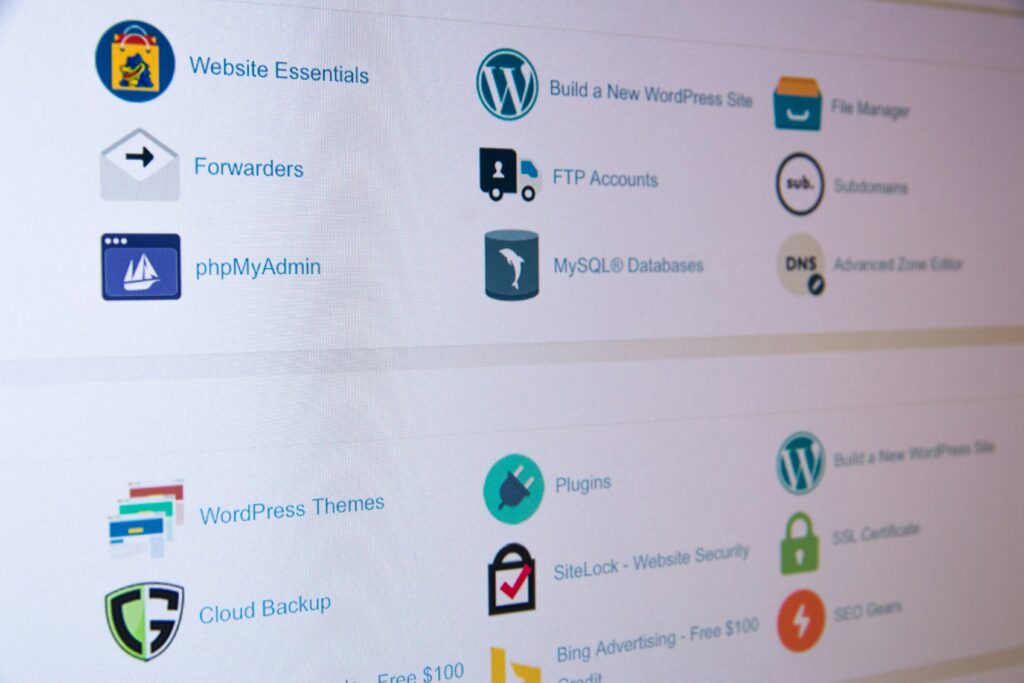
A heavy theme can slow down your website.
Avoid:
Themes with too many animations
Unnecessary built-in features
Choose:
Fast
Simple
Mobile-friendly themes
Popular Lightweight Themes:
Astra
GeneratePress
Neve
These themes are optimized for speed and SEO.
👉🏻Install a Caching Plugin
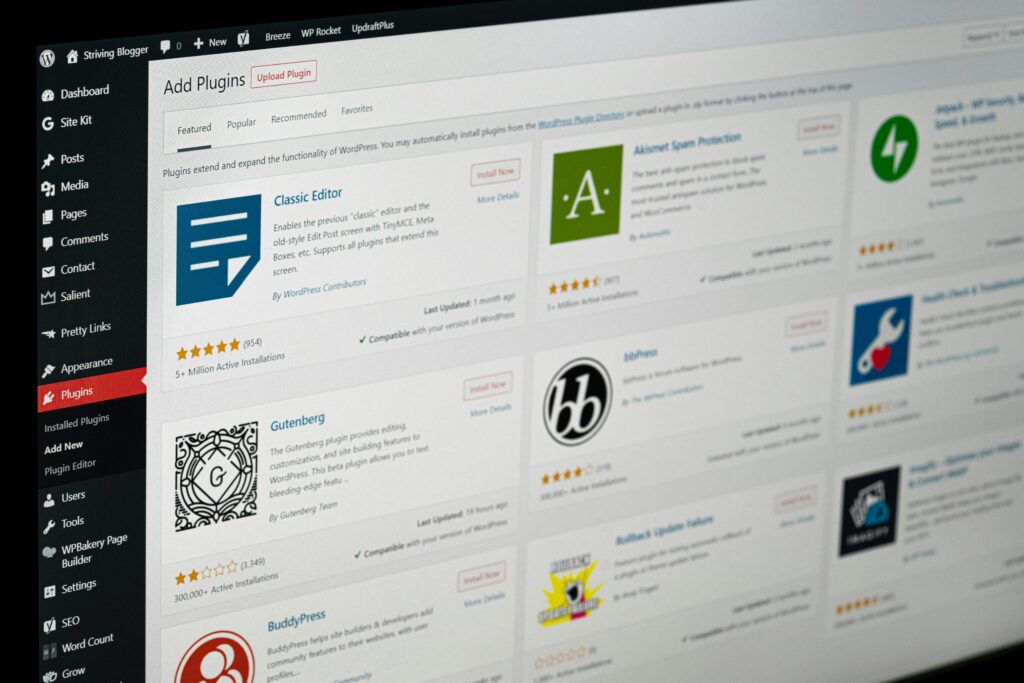
Caching is one of the easiest ways to speed up WordPress.
What Is Caching?
Caching stores a static version of your website so it loads faster for visitors.
Best Free Caching Plugins:
WP Fastest Cache
W3 Total Cache
LiteSpeed Cache (if supported by hosting)
Benefits:
Faster page load
Reduced server load
Better performance
👉🏻Optimize Images Properly
Large images slow down websites.
Common Image Mistakes:
Uploading images directly from camera
Using high-resolution images unnecessarily
Image Optimization Tips:
Resize images before upload
Compress images
Use modern formats like WebP
Best Image Optimization Plugins:
Smush
ShortPixel
Optimole
Tip: Always use compressed images for blog posts.
👉🏻Use a Content Delivery Network (CDN)
A CDN helps load your website faster for users from different locations.
What Is CDN?
CDN stores copies of your website on multiple servers around the world.
Benefits:
Faster global loading
Reduced server stress
Better security
Popular Free CDN:
Cloudflare
Cloudflare is easy to set up and improves speed instantly.
👉🏻Reduce Number of Plugins
Too many plugins slow down WordPress.
Plugin Problems:
Extra scripts
Database load
Conflicts
Best Practices:
Delete unused plugins
Use multipurpose plugins
Avoid poorly coded plugins
Tip: Keep only necessary plugins.
👉🏻Minify CSS, JavaScript, and HTML
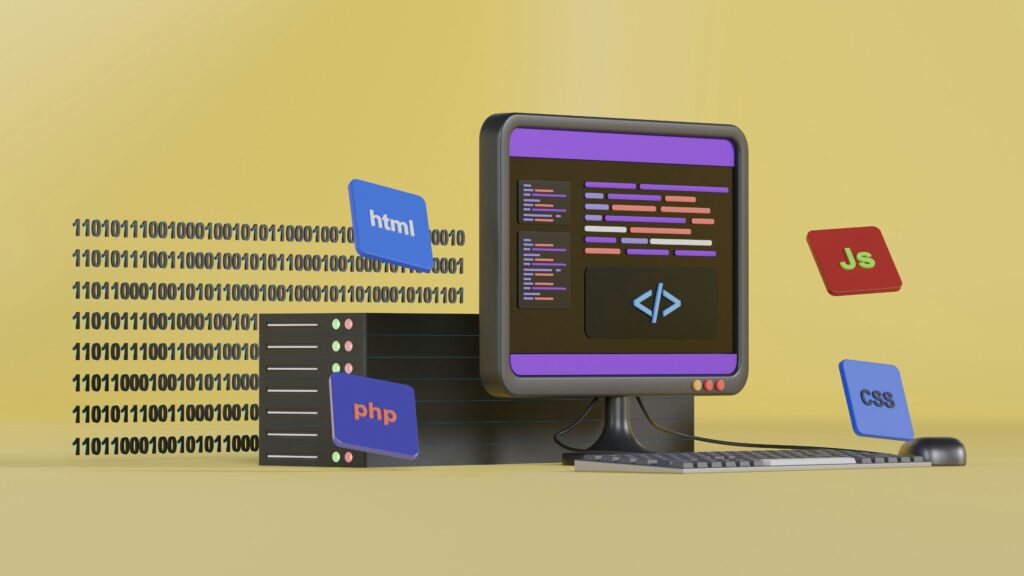
Minification removes unnecessary spaces and characters from code.
Why It Helps:
Smaller file size
Faster loading
How to Minify:
Using caching plugins
Using optimization plugins
Recommended Plugins:
Autoptimize
WP Fastest Cache
👉🏻Enable GZIP Compression
GZIP compresses website files before sending them to the browser.
Benefits:
Smaller page size
Faster load time
Most caching plugins enable GZIP automatically.
👉🏻Optimize WordPress Database
Over time, your database collects unwanted data.
Unwanted Data Includes:
Post revisions
Spam comments
Trash files
Database Optimization Plugins:
WP-Optimize
Advanced Database Cleaner
Clean database = better performance.
👉🏻Use Latest PHP Version
PHP version affects website speed.
Benefits of Latest PHP:
Faster execution
Better security
How to Update PHP:
Through hosting control panel
Ask hosting support
Always test after updating PHP
.
👉🏻Limit Post Revisions
WordPress saves multiple versions of posts.
Problem:
Increases database size
Solution:
Limit revisions using plugin
Or use simple code
Plugins like WP-Optimize can handle this easily.
👉🏻Disable Hotlinking
Hotlinking happens when other websites use your images.
Problem:
Increases bandwidth usage
Slows down website
Solution:
Enable hotlink protection from hosting or CDN
👉🏻Lazy Load Images and Videos
Lazy loading loads images only when users scroll.
Benefits:
Faster initial loading
Better user experience
Plugins:
WP Rocket (paid)
Smush (free)
👉🏻Reduce External Scripts
External scripts include:
Ads
Fonts
Analytics
Tips:
Use limited external scripts
Load scripts asynchronously
👉🏻Keep WordPress Updated
Always update:
WordPress core
Themes
Plugins
Updates improve:
Speed
Security
Performance
Common Speed Mistakes to Avoid
Using nulled themes/plugins
Uploading large images
Ignoring speed test reports
Cheap hosting
Too many ads
Ideal Speed Score for WordPress
Recommended:
Page load time: under 3 seconds
Google PageSpeed score: 80+
Speed Optimization Checklist
✅ Fast hosting
✅ Lightweight theme
✅ Caching plugin
✅ Optimized images
✅ CDN enabled
✅ Limited plugins
✅ Minified files
Final Thoughts
Speeding up your WordPress website is not difficult if you follow the right steps. Even small changes can make a big difference. A fast website helps in SEO, user experience, and Google AdSense approval.
If you are serious about growing your WordPress website, speed optimization is a must.
Start with hosting, theme, and caching. Slowly optimize images, plugins, and database. You will see great improvement.
Pingback: Best Laptops for Students in 2026: A Complete Guide - techwithchello.com
Pingback: How to Start a YouTube Channel – Complete Guide for Beginners 2025 - techwithchello.com